
Submit a Short Video for Editing
In this section you'll learn how to add subtitles/b-rolls/emojis/headline/background/logo/outro to a short video. Please note that, the duration of the submitted video should be less than 3 minutes, otherwise an error with code 4005 will be returned.
Set Your Basic Parameters
When you send a short video to Vizard for editing, there are four core settings you need in your API request.
Think of these as simple instructions that tell Vizard what your video is, where it is, and how it should be processed.
1. Tell Vizard You Want “Editing,” Not “Clipping”
getClips
getClipsVizard has two major modes:
- Clip mode → Vizard analyzes long videos and automatically generates viral short clips
- Edit mode → You send a short video and ask Vizard to edit it
Because this workflow is about editing, you need to turn off clip mode.
How to set it:
"getClips": 0Setting this to 0 tells Vizard: “Don’t search for clips—just edit the video I’m sending you.”
2. Tell Vizard Where Your Video Lives
videoUrl + videoType
videoUrl + videoTypeVizard needs a URL to your video and a hint about what platform that URL belongs to.
Choosing the right videoType
videoType| Parameter | Required | Value | Description |
|---|---|---|---|
| videoUrl | ✅ | string | URL of your video source |
| videoType | ✅ | 1 | Remote video file (directly downloadable URL, typically ending in .mp4, .mov) |
| 2 | YouTube (standard video URL, but live videos are not supported) | ||
| 3 | Google Drive (publicly shared link) | ||
| 4 | Vimeo | ||
| 5 | StreamYard | ||
| 6 | TikTok | ||
| 7 | |||
| 9 | Twitch | ||
| 10 | Loom | ||
| 11 | |||
| 12 | |||
| ext | ✅ Yes for videoType 1 only | string | Video file extension. Supported video file extensions are: mp4, 3gp, avi, and mov. |
When using a direct video file (videoType = 1)
videoType = 1)Include the file extension:
"ext": "mp4"Supported extensions: mp4, 3gp, avi, mov
3. Tell Vizard What Language Is Spoken in the Video
lang
langThe language setting helps Vizard generate accurate transcription, subtitles, and speech-based highlights.
Most of the time, automatic detection is the easiest choice:
"lang": "auto"To specify manually, use ISO 639-1 codes:
| Parameter | Required | Value | Language |
|---|---|---|---|
| lang | ✅ | auto | Auto detect |
| en | English | ||
| es | Spanish | ||
| pt | Portuguese | ||
| fr | French | ||
| de | German | ||
| ru | Russian |
Full list: https://vizard.readme.io/docs/supported-languages#/
Set Functional Parameters
After setting your basic parameters, you can customize how Vizard edits your video using a set of functional options. These settings help you control the output aspect ratio, subtitle style, B-roll, headline overlays, templates, and more.
1. Choose Your Output Aspect Ratio
ratioOfClip
ratioOfClipThe ratioOfClip parameter controls the aspect ratio of your edited output video. This can be different from the aspect ratio of the video you submit. For example, you may upload a 16:9 horizontal video but request a 9:16 vertical output suitable for Shorts, TikTok, or Reels.
Available Options
| Parameter | Value | Aspect Ratio | Best For |
|---|---|---|---|
| ratioOfClip | 1 (default) | 9:16 (Vertical) | TikTok, Instagram Reels, Shorts |
| 2 | 1:1 (Square) | Instagram Feed, Facebook Feed | |
| 3 | 4:5 (Portrait) | Instagram Feed (optimized height) | |
| 4 | 16:9 (Horizontal) | YouTube, LinkedIn, Twitter |
Usage Examples
- ratioOfClip: 1 → Creates vertical videos ideal for mobile platforms.
- ratioOfClip: 4 → Produces widescreen videos suited for YouTube or desktop viewers.
- ratioOfClip: 2 → Generates square videos that display well in social feeds without cropping.
2. Control Subtitles, Emojis, and Highlight Words
subtitleSwitch, emojiSwitch, highlightSwitch
subtitleSwitch, emojiSwitch, highlightSwitchThese parameters let you fine-tune how subtitles appear in your edited output.
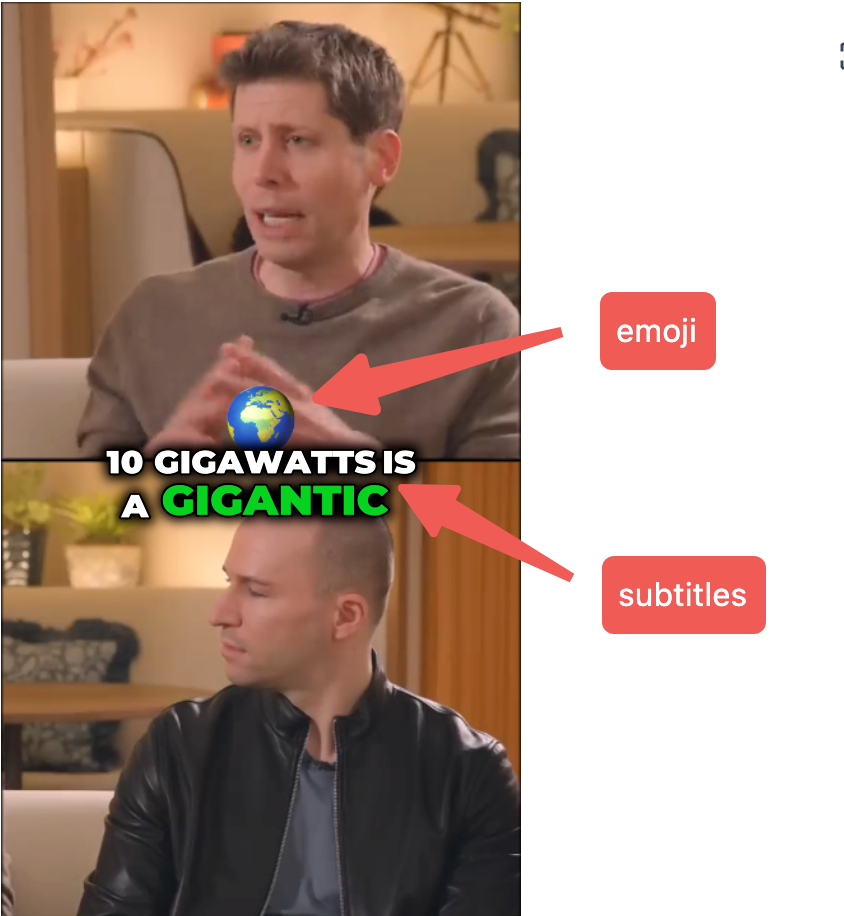
Subtitles (subtitleSwitch)
subtitleSwitch)- Set to 1 → Show subtitles (default)
- Set to 0 → Hide subtitles
Emoji in Subtitles (emojiSwitch)
emojiSwitch)- Set to 1 → Automatically add emojis
- Set to 0 → Disable emojis (default)
Highlight Words in Subtitles (highlightSwitch)
highlightSwitch)- Set to 1 → Auto-highlight important words
- Set to 0 → Disable highlights (default)
3. Automatically Add B-roll
autoBrollSwitch
autoBrollSwitchEnable or disable AI-generated B-roll that enhances your edited video.
- Set to 0 → Disable auto B-roll (default)
- Set to 1 → Enable auto B-roll
4. Add an AI-Generated Headline
headlineSwitch
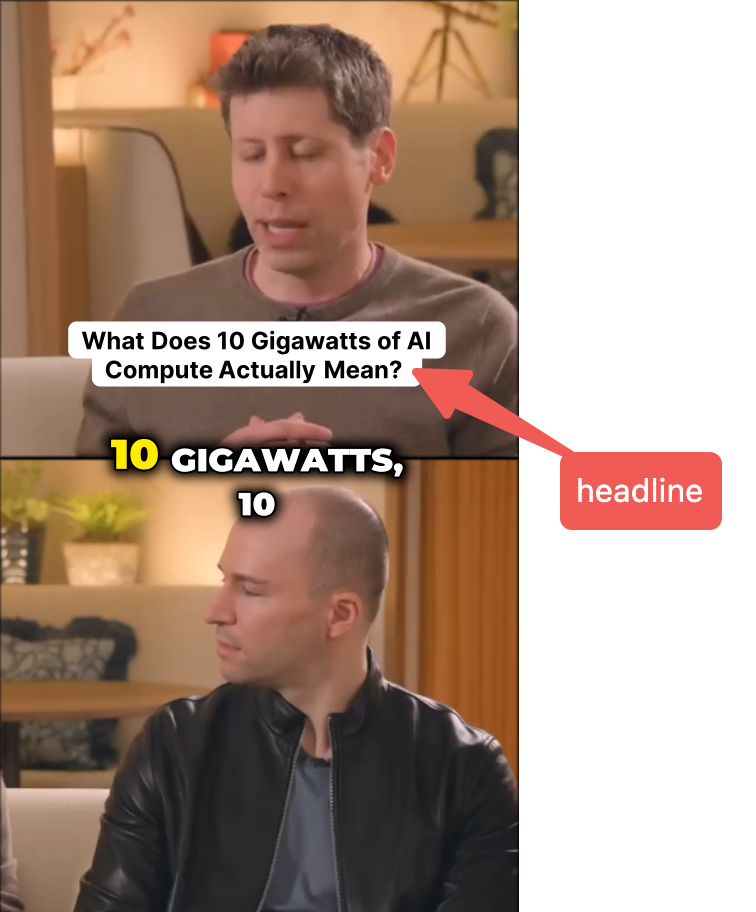
headlineSwitchThe headline is a short attention-grabbing overlay shown during the first few seconds of your edited video.
It functions as a “hook” to increase viewer engagement.
- Set to 1 → Show headline (default)
- Set to 0 → No headline
5. Remove Silence and Filler Words
removeSilenceSwitch
removeSilenceSwitchWhen enabled, Vizard will automatically remove silent gaps and trim filler sounds like “um” or “uh” from your edited video, creating a cleaner and more engaging result.
6. Apply a Template
templateId
templateIdUse the templateId parameter to apply a custom editing template. Templates can control:
- Subtitle fonts, size, color
- Headline style and placement
- Logo positioning
- Branding elements
- Background layers, animations, transitions
The template ratio must match the
ratioOfClipparameter.Both personal templates and those in the Brand Kit are supported.
If Headline is set to disabled in applied template, parameter
headlineSwitchwill be ignored.
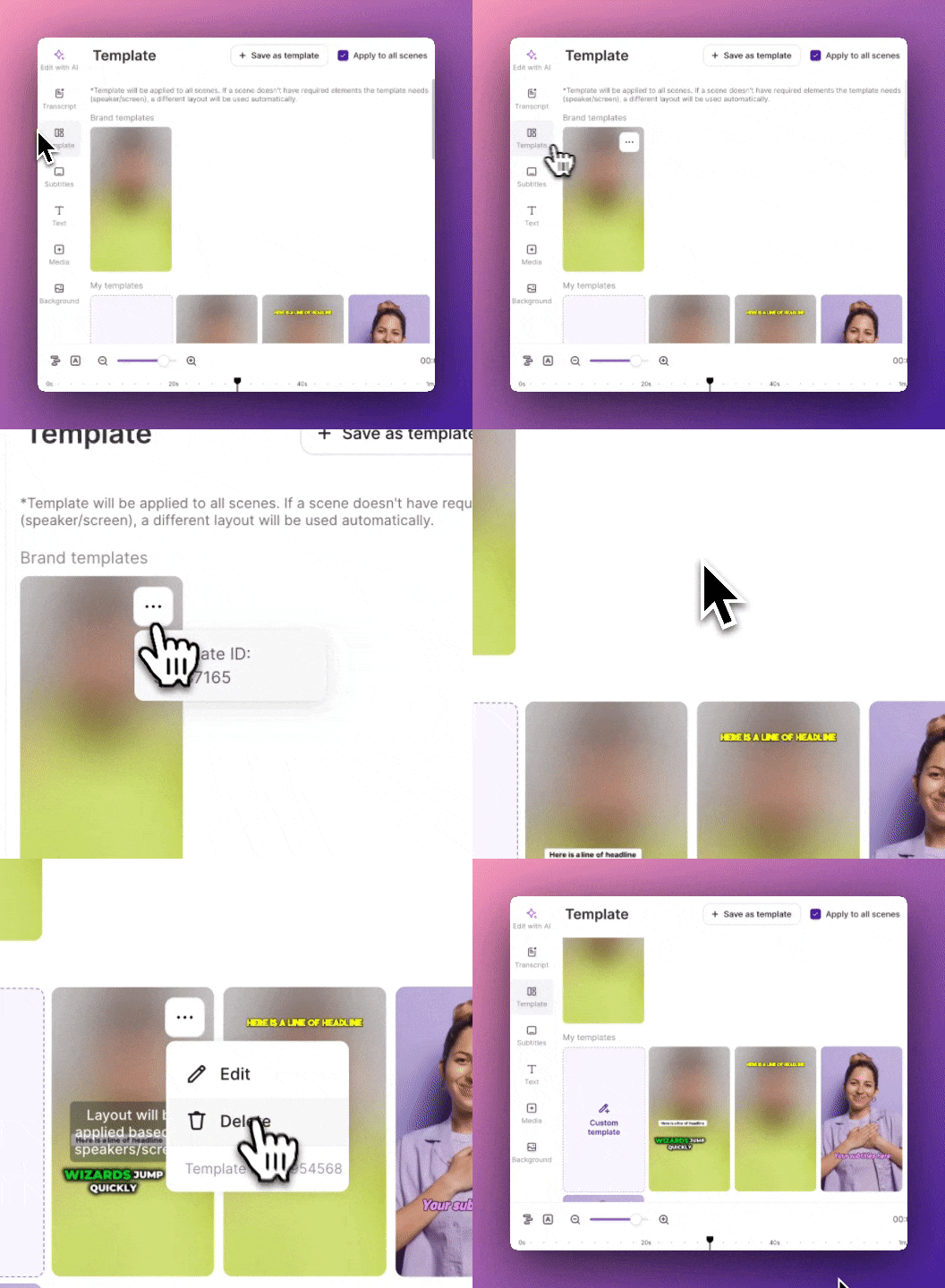
How to find your templateId
- Log in to your Vizard account.
- Open the editor for any video by clicking Edit.
- Switch to the Template tab.
- Hover over a template to reveal its ID.
- Copy and paste it into your API request.
7. Name Your Editing Project
projectName
projectNameUse the projectName parameter to assign a custom name to the editing project created from your uploaded video.
If not provided, Vizard will automatically use:
- The filename of your uploaded video, or
- The YouTube title (if submitting a YouTube URL)
Full Request Overview
To help you see everything in one place, this section summarizes all parameters you can include in an editing request.
The list is divided into required parameters and optional parameters so you can quickly understand what is needed and what can be customized.
Required Parameters
These parameters must be included in every request, no matter what options you choose.
{
    "getClips": 0,
    "videoUrl": "https://www.youtube.com/watch?v=OqLfw-TzzfI",
    "videoType": 1,
    "lang": "auto"
}
Optional Parameters
These parameters let you customize how your edited video looks—aspect ratio, subtitles, B-roll, template, project naming, and more.
Include only the ones you need.
{
    "ratioOfClip": 1,
    "subtitleSwitch": 1,
    "emojiSwitch": 0,
    "highlightSwitch": 1,
    "autoBrollSwitch": 1,
    "headlineSwitch": 1,
    "removeSilenceSwitch": 1,
    "templateId": 52987165,
    "projectName": "My Edited Video Project"
}
Putting It All Together
A full request typically includes the required parameters plus any optional features you want to enable.
Use this section as a reference whenever you build a new editing request with the Vizard API.
Updated 8 months ago